 LogQuill
The Time Tracking page
Your logged and planned time, as a table of issues against days or as a week board.
Who: everyone whose role tracks time. The page shows your own time only. Team leaders see their team's time on the team's Timesheets tab (Reviewing timesheets).
At the top of the page:
- Export downloads the table as you see it, as Excel or CSV (table view only).
- Submit timesheet opens your timesheet for the current period. Submit your timesheet
- Time actions: Log time, Plan time and Copy last week.
Below them, a timer, then two views: Timesheet and Week board. The page opens on the one chosen in your personal settings.
The Timesheet view
Every issue you worked on against every day of the period, with totals per row, per day and overall.
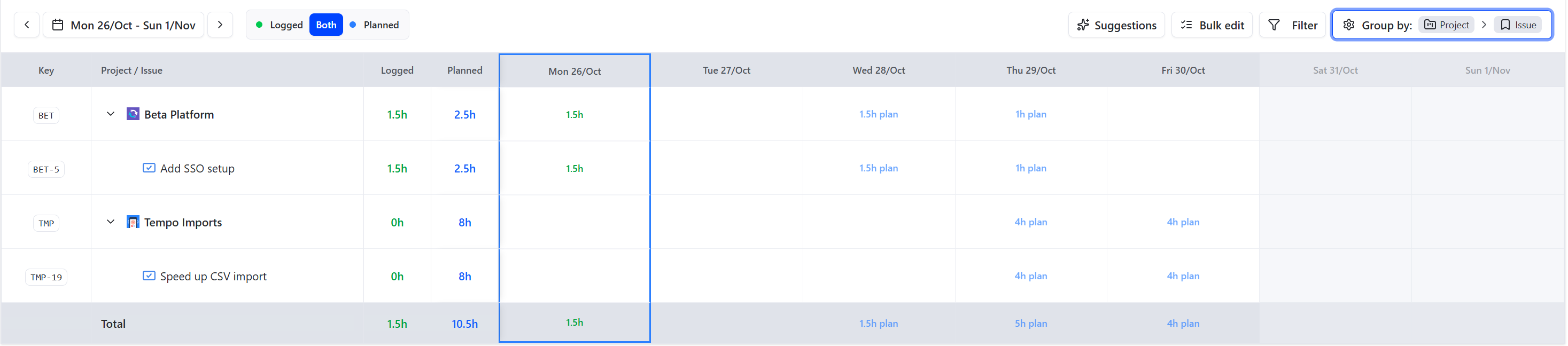
- Period: move back and forth with the arrows, or pick any range of days.
- Group by: project, epic, issue, sub-issue, work type, overtime, account, billable, and your site's worklog fields, in any order. Drag the levels to reorder them.
- Show: Logged, Planned, or Both side by side, with the Difference.
- Filter: narrow the table by project, issue, issue type, status, priority, work type, or worklog field values. The filtered total shows above the table.
- Click a cell to see the worklogs and plans in it, and to edit or delete them.
- Select days (click a day's heading, or drag across days) to log or plan time on them at once.
- Weekends and public holidays are shaded, and so are your days of approved leave. A day's target comes from your site's working hours, less holidays and leave: the summary above the table says how many hours each took off.
Issues that were deleted or archived in Jira, or that you can no longer see, keep their time and show an icon: hover it for the reason. Their time can't be changed.
If your organization's data security policy (Atlassian Guard) blocks LogQuill from some projects, a notice says so at the top of the page, and their issues show a shield instead. Jira no longer lets LogQuill read them, so they can't be shown or changed here, but time already logged on them still counts. Only your Atlassian organization admin can change the policy.
Wherever projects are listed, a small badge says when one is Blocked by that policy, Archived in Jira, or Unavailable (deleted, or out of your reach): in the filters, on teams, in the admin settings for accounts and fields, in the Tempo import, the audit log, the dashboard and timesheet previews. Hover over a badge to see what it means for the project's time. Grouped by project, the table and reports put blocked time under a Blocked project row, since Jira won't name it. On a Jira issue in a blocked project, LogQuill time and the LogQuill worklogs panel say the project is blocked instead of showing figures.
The Week board
One week, a column per day, each entry a card. Each day shows its logged hours against its target, and what you planned.
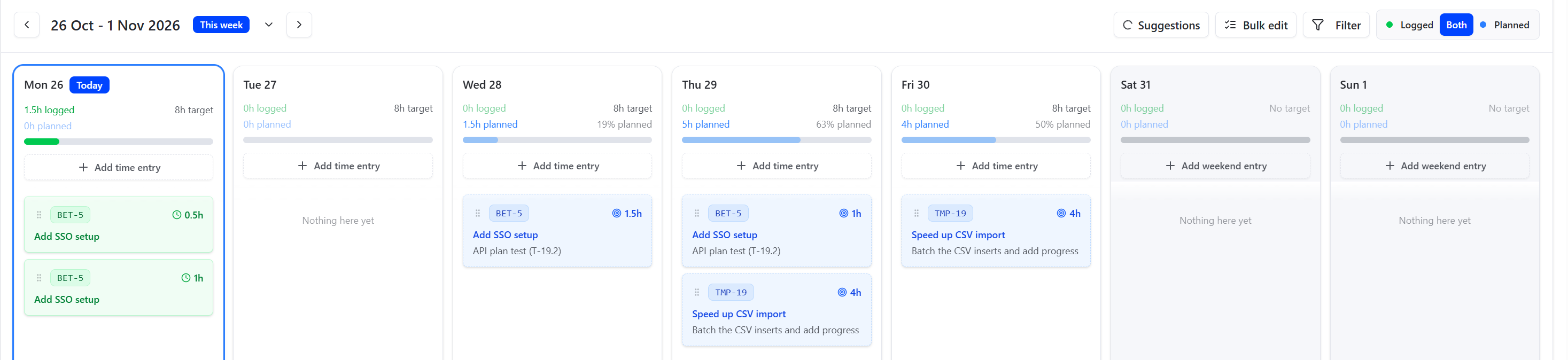
- Drag a card to another day to move it. It saves at once; a card shows Saving… until it has.
- + on a day logs or plans time on it.
- Open a card's menu to edit or delete it.
- The week picker jumps to earlier or later weeks, and Back to the current week.
Suggestions and bulk edit
Both views have Suggestions (the count of things you did in Jira and haven't logged yet) and Bulk edit, to change many entries at once. See Suggestions and Copy last week and bulk edit.