 LogQuill
Teams
Who works together, who leads them, and the Jira projects they work on.
Who: everyone sees the teams they're in. Team leaders run their own teams. Managers and administrators (with Manage all teams) create, change and delete any team.
Timesheets are handed in to a team, and its leader reviews them, so everyone who tracks time should be a member of at least one team. A person can be in several.
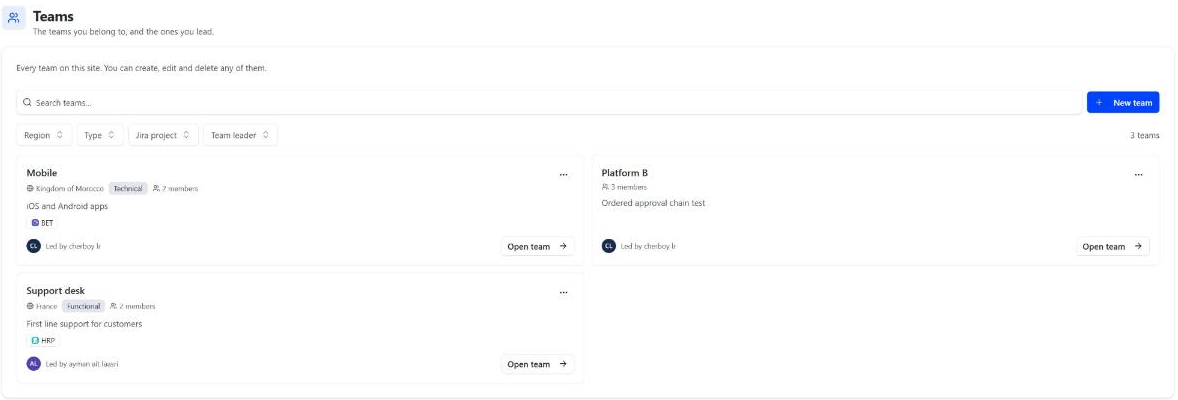
The Teams page
Open Teams in the sidebar. You see the teams you belong to and the ones you lead; with Manage all teams, every team on the site, and New team. A long list shows 30 teams at a time, with Show more below; search or filter to find one. A team's members are listed 50 at a time the same way.
Create a team
Who: managers and administrators.
On the Teams page, choose New team.
Give it a Team name, and optionally a Description, a Type and a Country (when your site operates in more than one, from those countries). Its members take that country's public holidays.
Choose its leader and add its members.
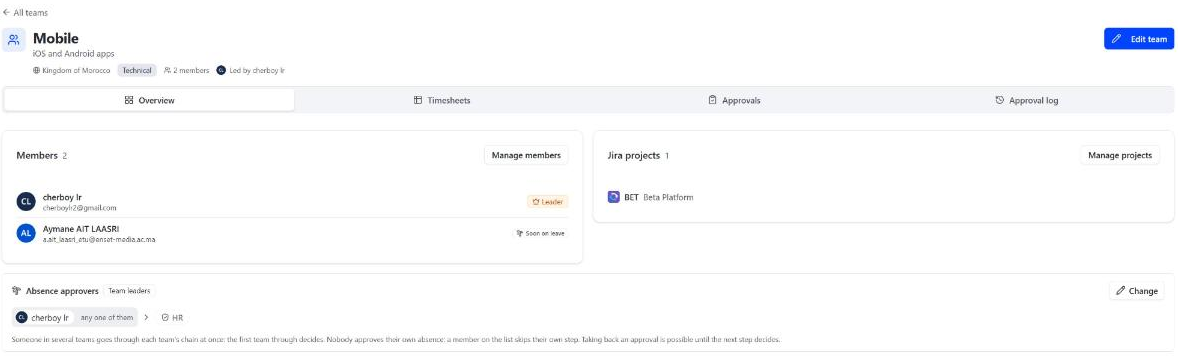
A team's page
Open a team to see its tabs:
- Overview: the Team leader, the Jira projects the team is responsible for, and its Members.
- Timesheets and Approvals: for the team's leader, and for anyone who manages all timesheets. See Reviewing timesheets.
- Approval log: every timesheet submitted to, approved or sent back by the team. For people who manage all timesheets.
What a leader can change
A team's leader, like a manager, can:
- edit the team's details (Edit team);
- Add members and Remove from team;
- choose its Jira projects (Manage projects). Their list replaces the current one.
Changing who leads a team (Change leader) is for managers and administrators. The previous leader stays on the team as a member.
A team's leader can't hand their own timesheet in to that team, unless your site lets leaders review their own (see Timesheet settings). They hand it in to another team they're a member of.
People who left
When someone's Atlassian account is deactivated or deleted, they stay in their teams with a badge, so their past time still shows. Nothing is expected from them anymore: no reminders, no missing time.