 LogQuill
Personal settings
How LogQuill looks and behaves for you, and what it takes from Jira and your teams.
Who: everyone. Changes apply right away, and only for you. They belong to this Jira site: if you use LogQuill on another site too, you set them there separately.
Open your menu (your name at the bottom of the sidebar), then Personal settings.
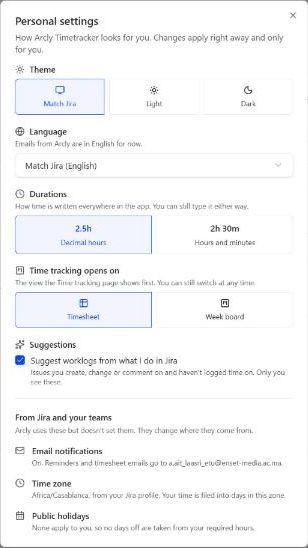
What you can set
- Theme: as in Jira, light or dark.
- Language: as in Jira, English or French. Emails are in the site's email language, which an admin sets for everyone in Admin → General.
- Durations: how time is written across the app, as decimals (
2.5h) or hours and minutes (2h 30m). You can type it either way. - Time tracking opens on: the Timesheet view or the Week board.
- Suggestions: whether to suggest worklogs from what you did in Jira. Suggestions
- Welcome tour: Take the tour again runs the tour of the app's main parts once more. The welcome tour
From Jira and your teams
LogQuill uses these, but doesn't set them. They change where they come from.
- Email: whether LogQuill can email you (timesheet reminders, approvals). If Jira keeps your email address from apps, LogQuill can't. To change that: open your Atlassian profile, then Profile and visibility, and under Contact, set Email address to Anyone. LogQuill picks it up within a day, or straight away with Check again.
- Time zone: the one in your Atlassian profile. It decides which day your time lands on.
- Public holidays: the country whose holidays you take, from your team or set by an administrator.