 LogQuill
Project page
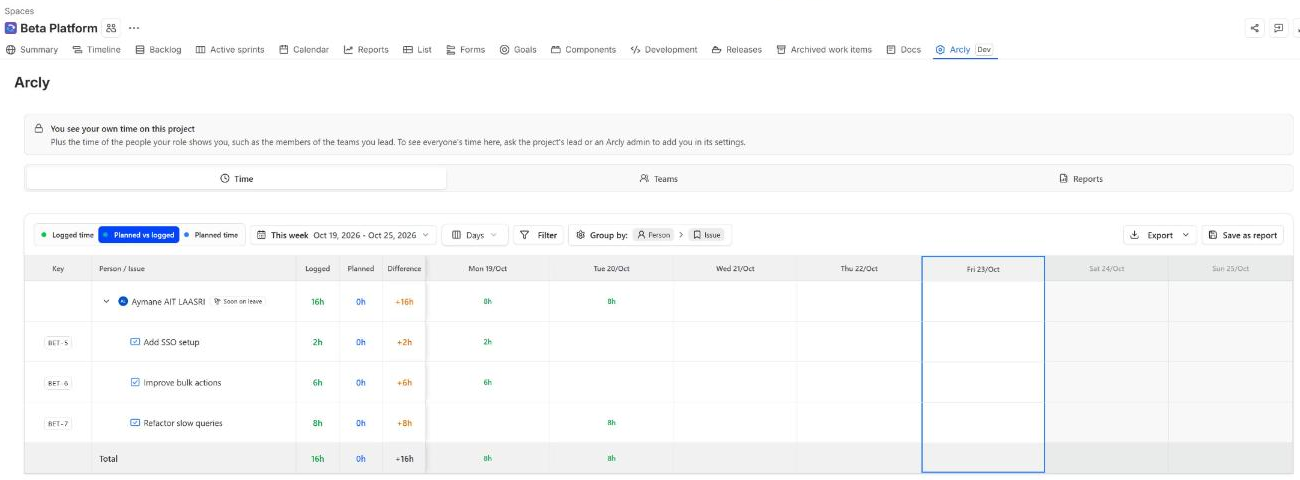
A Jira project's time, grouped and filtered as in reports, its teams and every report about it, from LogQuill's tab in the project.
Who: everyone Jira shows the project to, unless the project's settings keep the page to the people who see everyone's time on it.
Open a project in Jira and pick LogQuill in its navigation, beside Summary, Timeline and Board. When the project has many tabs, LogQuill can be under More. The tab you are on, and the report open in Reports, are in the page's address: a reload or a copied link opens them again.
When the page doesn't open for you, it says why: the project's settings keep it to the people who see everyone's time on it, or Jira doesn't give you Browse projects on the project.
What you see
The box at the top says whose time you see on the project:
- Everyone's time: your role sees all time, you lead the project, or you are on the project's "see everyone's time" list.
- Your own time: plus the time of the people your role shows you, such as the members of the teams you lead. To see everyone's, ask the project's lead or a LogQuill admin to add you in the project's settings.
It also says when the project's settings hide its accounts and billable time from you. Every tab follows the same rules.
Time
The project's time, shown as a report that isn't saved: logged, planned or both, any period, columns by day, week or month, and the same filters and groupings as reports, account and billable included. It starts on this week, grouped by person, then issue. LogQuill remembers how you left it for the next project page you open.
Click a cell to see its worklogs and plans. Export saves the table to CSV or Excel, or every worklog one row each. Save as report keeps the view as one of your reports: it then shows in the Reports tab. Its name is suggested from what it shows, such as "KP: Planned vs logged, This week, by Person, with billable time".
Nothing can be changed here: log and plan time from the time tracking page or on the issue.
Teams
The project's lead, and the LogQuill teams that work on it, each with who leads it and how many people it has. Teams are linked to the projects they work on from the Teams page.
- Tick teams, then Show these teams' time, to see only their time in the Time tab.
- Click a team's members to list them. Tick people and Show their time, or Show the team's time.
Only teams and people whose time you see on the project can be ticked: everyone's when you see everyone's time there, otherwise yourself and the members of the teams you lead.
Screenshot to add: public/screenshots/teams-and-reports/project-page-members.png
The project page's Teams tab with a team's members open, two people ticked.
On the project page, open the Teams tab with two linked teams, then click one team's members. Tick two people and capture the dialog over the list.
Reports
Every saved report whose Projects filter includes this project, whoever made it. Click one to open it here. On this page, a report shows only this project's time, as you may see it, even when it covers other projects too, or was made by someone who sees more.
Your own reports can be changed and saved here, as in LogQuill. Other people's are read only. New report starts one on this project, which you save under a name.
Configuration
Shown to the people who may change the project's settings: LogQuill admins, the project's lead and its Jira admins. It opens the project's LogQuill settings in a new tab.