 LogQuill
Dashboard
Your week at a glance, made of widgets you choose and arrange.
Who: everyone. Each person arranges their own dashboard; changes only affect yours.
The dashboard is the first page LogQuill opens on.
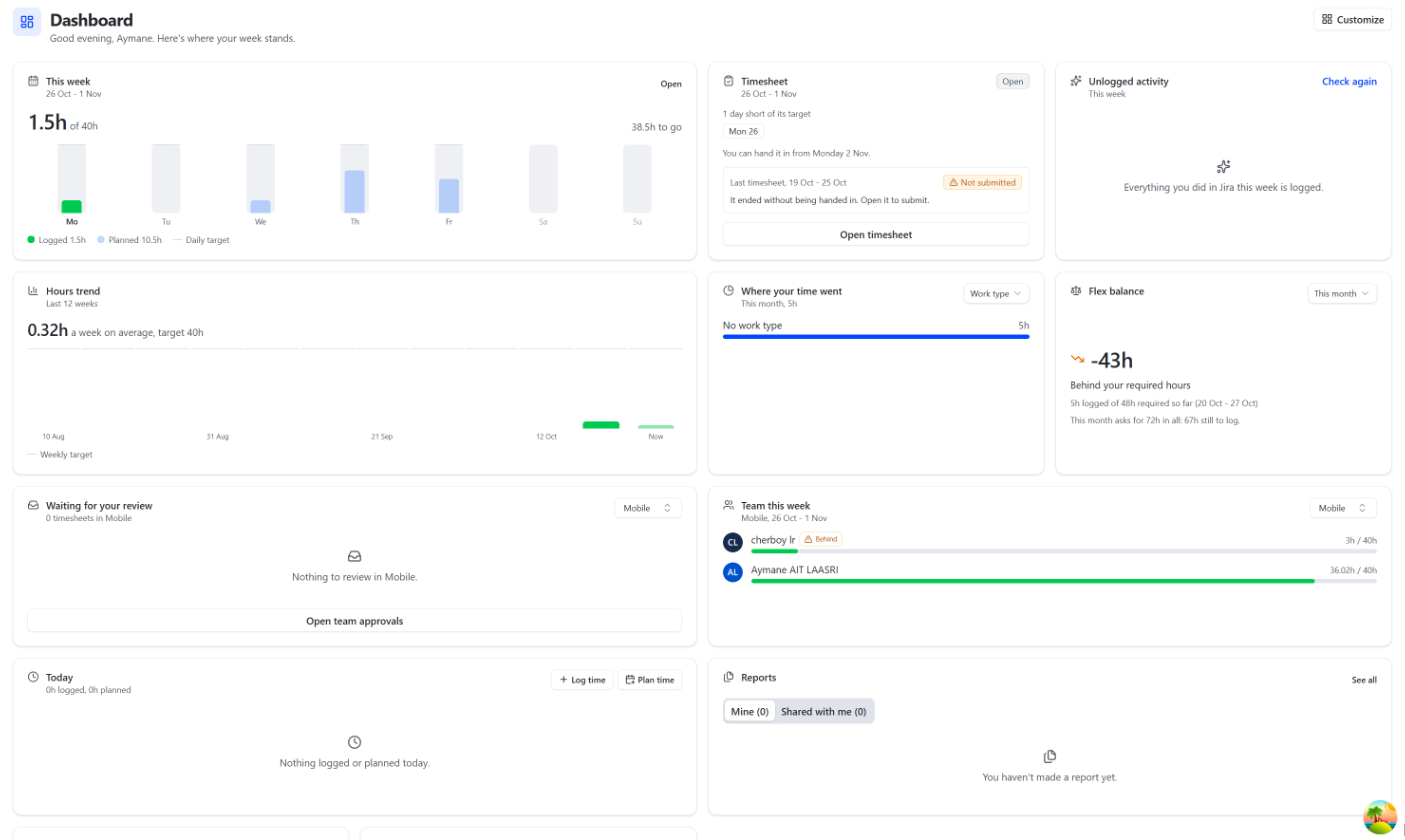
The widgets
| Widget | What it shows | Who can add it |
|---|---|---|
| This week | Hours logged against your target, day by day, with what you planned. Public holidays and approved time off come out of the target; time off waiting for approval doesn't until it is approved. Your time off shows on its days in its type's colour (striped while it waits for approval), public holidays in amber. At the smallest width, a bar for the week and one for each day. The arrows step back through earlier weeks | People who track time |
| Timesheet | What your timesheet in progress still needs before it goes in. The arrows step back through earlier ones, one at a time, with how each stands | People who track time |
| Today | What you logged and still plan today, with a quick way to add either | People who track time |
| Timer | A timer on an issue, logged when you stop | People who track time |
| Unlogged activity | What you did in Jira this week and haven't logged. Suggestions | People who track time |
| Where your time went | This month's hours by work type, project or epic | People who track time |
| My absences | Your time off: what you are on now, then what waits for approval (and for whom), then what is coming up | Everyone |
| Coming up | The next public holidays in your country | Everyone |
| Reports | Your latest reports and those shared with you: one list when there are a few, a tab each when there are more. New report opens the report builder | Everyone |
| Waiting for your review | Timesheets handed in to your teams, longest waiting first: all your teams (with each one's team named), or one | Team leaders, managers |
| Team this week | Each member's hours so far, whoever is furthest behind first | Team leaders, managers |
| Who's out this week | Who is away this week, then next week, and how many of the people it covers are away this week: your teams, or everyone. Absences | Everyone |
| Absences to approve | Absences waiting for your approval, all your teams or one, to approve or reject right there | Absence approvers, HR, admins |
When a widget sits beside a taller one, lists like Who's out, Coming up, Unlogged activity, Where your time went, Team this week and Reports show more rows to fill the space. Where some still don't fit, the widget says how many more there are.
Arrange it
Choose Customize.
Drag widgets by their handle to reorder them, change their width, or remove them. Each widget offers only the widths it reads well at: some are always small, Today is always medium. Add widget lists the ones you can add.
With the keyboard: move to a widget's handle, press Space, move it with the arrow keys, and press Space again to drop it.
Choose Done to keep your layout, or Reset to go back to the default.