 LogQuill
Submit your timesheet
At the end of each period, check your time against what was required and send it to your team leader.
Who: everyone whose role tracks time and who is a member of a team.
A timesheet covers one period (one to four weeks, as your site sets it). Once the period has ended, you hand it in to a team you're a member of, and its leader approves it or sends it back.
Open your timesheet
- Submit timesheet at the top of the Time Tracking page.
- The Timesheet widget on your dashboard.
Move between periods with the period navigation at the top of the dialog.
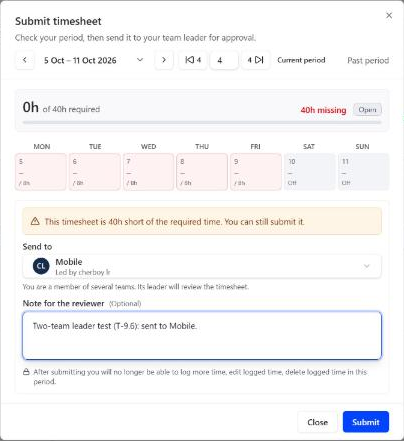
What it shows
- Required: the working hours of each day in the period. Weekends and your public holidays count as zero, and so do the days of your approved absences (half for a half day).
- Logged and Counted: your site may not count hours beyond a day's target, or time on days off, toward what's required. The dialog says how much isn't counted, and why. That time is still recorded and shown everywhere else.
- Missing: what's still short. Your site may allow a small shortfall (a tolerance) over the whole period.
- By project: where the time went, for the whole period or the day you pick.
Submit it
Check the period, and log what's missing.
Send to: if you're a member of several teams, choose which one. Its leader reviews it. A team with no leader yet is reviewed by a manager or an administrator.
Add a Note for the reviewer if you like, then Submit.
After submitting, what you can still change in that period depends on your site's settings: the dialog says what you won't be able to do. Once approved, the period is locked.
Locked days show a padlock: in the table's column header, on the week board's day, and on each entry it stops you from changing. Hover over it to see why and what's still allowed. Only what is still allowed is offered: on the board, a locked worklog can't be dragged and its … menu leaves out what you can't do, and in a day's details the pencil or bin is gone. Plans usually stay editable on a submitted timesheet, unless your admin locks them too.
When you can't submit yet
- This period is still running. It can be submitted from the day after it ends.
- You don't belong to any team, or you only lead teams. A timesheet goes to a team you're a member of. Ask a manager or an administrator to add you to one.
- Missing time, if your site refuses incomplete timesheets. Log the missing time first.
After you submit
The dialog shows where it stands (Submitted, Approved) and its history: who submitted, approved, sent it back or reopened it, with their notes.
- Approved: done. The period is locked.
- Sent back (rejected): it's open again, with the reviewer's reason. Fix it and submit again.
- Reopened after approval: same, change what's needed and submit again.
Your site may email you when this happens, and remind you before or after a period ends if time is missing.