 LogQuill
Suggestions
What you did in Jira, and the meetings in your calendar, offered as worklogs you can log in one click.
Who: everyone whose role tracks time. Your suggestions are yours alone: nobody else sees them, whatever their role.
LogQuill looks at what you did in Jira and, if you connect it, your calendar, and suggests the time you haven't logged yet. Nothing is logged until you choose to.
Where they come from
Your Jira activity. Each issue you created, commented on, moved or edited on a day becomes one suggestion of 15 minutes on that day. It goes away once that issue has time logged on that day. Logging, editing or deleting time doesn't count as activity.
Your calendar, once connected. Each meeting becomes a suggestion for its own length, on the issue it belongs to:
- a Jira key in the meeting's title or description (
ABC-123); - otherwise, the issue you picked last time for the same recurring meeting, or a meeting with the same title;
- otherwise, your meetings issue, if you chose one;
- otherwise, you pick the issue when you log it.
All-day events, events you declined, ones shown as free, and anything longer than 12 hours aren't suggested.
Where you see them
- Suggestions on the Time Tracking page, with how many there are this week.
- A mark on the day headings of the table, which opens that day's suggestions only (Whole week shows the rest), and faded, dashed entries on the week board.
- The Unlogged activity widget on the dashboard.
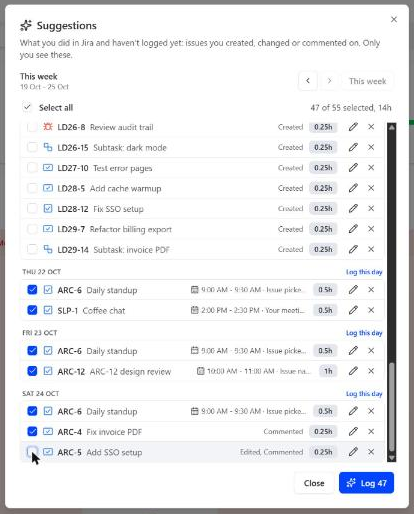
Log them
Open Suggestions, tick the ones to keep, and choose Log. Each is logged as it is, with the usual rules (working hours, locked timesheets, required fields).
- Change before logging opens Log time with it filled in.
- Needs details: your site requires something the suggestion doesn't have, such as a work type or, for a meeting, an issue. Change it before logging.
- No room left that day: the day is already full under your site's working hours limit. It stays listed, greyed out, and Open this day takes you there.
- Hide until I work on it again dismisses one. It comes back only if you do something newer on that issue that day.
Suggestions refresh when you come back to LogQuill (after commenting in Jira, say) and every few minutes while it stays open.
Connect a calendar
Open your menu (your name at the bottom of the sidebar), then Integrations.
Under Calendars, connect Google Calendar or Microsoft 365 and allow LogQuill to read your events. LogQuill only reads them: it adds nothing to your calendar unless you ask it to add your absences. The page that confirms the connection names whose LogQuill the calendar went to: always start from your own Integrations, never from a sign-in link someone sent you, and if the page names somebody else, disconnect the calendar there.
Optionally, choose a meetings issue: where meetings go when nothing else says which issue they belong to.
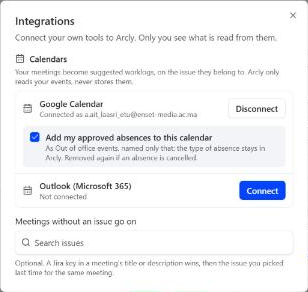
Disconnecting a calendar, in the same place, removes LogQuill's access at once. A connection belongs to the Jira site you made it on: if you use LogQuill on several sites, connect your calendar on each.
If your admin allows it, Turn my Out of office events into absences appears under a connected calendar. Add my approved absences to this calendar does the opposite: your absences show there as Out of office events. Absences
Turn Jira suggestions off
In Personal settings, under Suggestions. Meetings from a connected calendar keep coming until you disconnect it.