 LogQuill
Absence types
The kinds of absence people can ask for, who approves them, what each allows on its days, supporting documents, HR without a Jira account, and absences from Odoo or calendars.
Who: people with Absence settings.
Open Admin, then Absences. Every site starts with three types: Paid leave, Sick leave and Unpaid leave. They show in each person's language until you rename them.
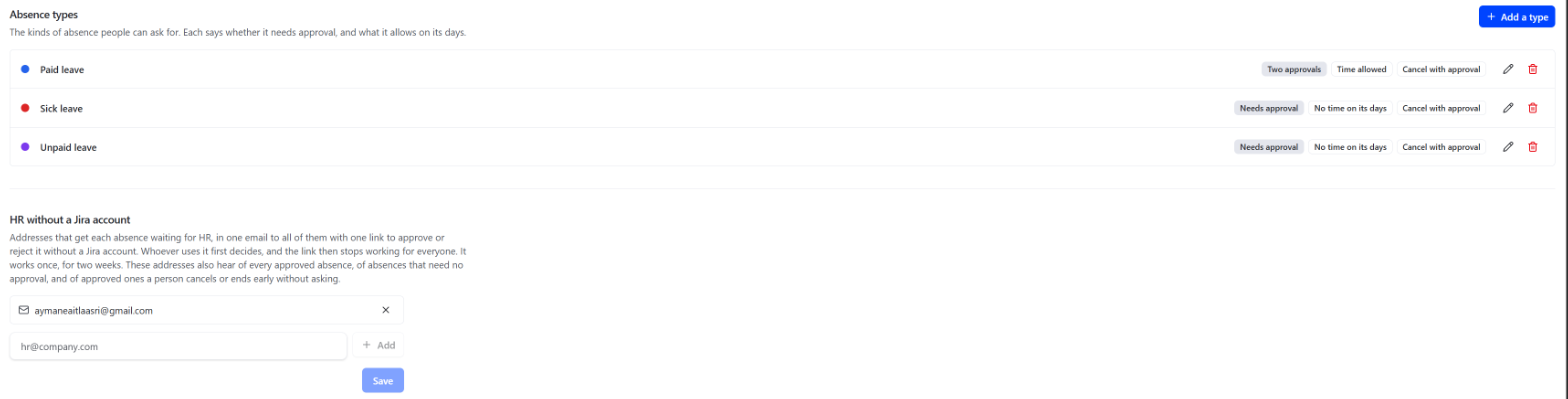
What a type sets
-
Name and colour.
-
Needs approval: by the person's teams' approvers. Without it, an absence is approved as soon as it's asked for, and HR is told.
-
Then HR approves it too: after a team's approvers, someone with Approve absences, or one of the HR email addresses, approves it as well.
-
Time on its days:
- Allowed, with a warning: the forms say the person is away. Up to a usual day's hours can still be logged, whatever the daily hours limit.
- Not allowed: no worklogs or plans on its days. Sick leave and Unpaid leave start this way.
-
Time on its days counts as overtime: worklogs on its days are ticked as Overtime, and the box can't be unticked. This needs the Overtime field on, in Time logging.
-
After approval: whether the person can cancel it, or end it early once it has started (it then ends yesterday, and the days already taken stay):
- Can be cancelled, with the same approval (the default): its approvers decide, and it counts until they accept.
- Can be cancelled freely: at once, without asking. Its approvers and HR are emailed when the person does so.
- Can't be cancelled: only HR and admins can.
Once an absence is over, nobody can cancel it.
-
Supporting document: whether people add a document, such as a medical certificate:
- Not asked (the default): no documents on this type.
- Optional: people can add one when they ask, or later. Approval doesn't wait for it.
- Required before approval: people can still ask without it and add it later (a certificate often comes after the first day off), but nobody can approve the absence until it's there. Its approvers see Supporting document missing, and can still reject it. On a type that needs no approval, the absence is approved at once, and the person sees a reminder in the app until they add it.
Sick leave starts as Required before approval. See Supporting documents for what people can add, and who can open it.
-
When the person's balance is insufficient: for a type with an allowance plan, whether a request for more days than the person has left is refused (the default, and so is approving one), or let through below zero, for its approvers to see.
Remove hides a type from new absences. Absences of it keep it, and adding a type with the same name brings it back.
Who approves
-
First, each of the person's teams, through its approval chain, set in Admin → Approvals:
- Default: for every team type without its own. Not set, each team's leader approves.
- By team type: one chain for every team of that type, so a site sets its approvals once per kind of team rather than team by team. Every team has a type for this reason.
- A team's own: for the odd team that works differently, set on its page with Customize for this team, and listed in Approvals to keep it in view. It wins over its type's chain. Back to the type's chain removes it.
A chain's steps are Team leader (whoever leads the person's team: each team's own) and people by name, anyone on the site (a director, say), approving one after the other (each can leave a note for the next) or any one of them. Nobody approves their own absence: a team leader asking skips their own step. An approver whose Jira account is deactivated is skipped, and a chain left with nobody falls back to the team's leader, or to HR. The default and type chains need Absence settings; a team's own, its leader, people with Manage all teams or Absence settings. Someone in several teams goes through each team's chain at once, and the first team through decides. Each change is in the audit log.
-
HR, for the types that ask for it: people whose role has Approve absences: the HR role, and Admin unless you take it away. They get HR's emails. A site where nobody has it sends HR's part to whoever has Manage roles, who can give it to someone.
-
See absence types shows the type and note of anyone's absence. Without it, someone who reviews every timesheet only sees that a person was away.
The built-in HR role has both. See People and roles.
HR without a Jira account
Most HR teams don't use Jira. Add up to ten HR email addresses. They get every absence waiting for HR, and each request to cancel one, with an Approve or reject link. The link opens a page outside Jira where HR sees the approvers' notes, opens the supporting documents, and can leave one for the person. To approve one with documents, HR ticks that they opened and checked them. While a required document is missing, the page offers only Reject.
The link is the key to that page: anyone who has it can see the absence and its documents until it's decided, so the email and the page both ask not to share it. Once the absence is approved or rejected, by anyone, the link and its documents stop working. HR who need to keep a document download it from the page first (Download beside each one). It's one email for all of HR (the addresses and HR's people in LogQuill), so it's sent once: the first to decide settles it, and the link stops working for everyone. It also works only for two weeks. The addresses are also told about every approved absence, absences that need no approval, and approved ones a person cancels or ends early without asking. Their decisions show in each absence's history as made by an HR email address.
To send the files themselves, tick Attach supporting documents to these emails. The emails for an absence waiting for HR, an approved one, and one that needs no approval then carry its documents as attachments. Only the HR addresses' copy has them, never the emails to people in LogQuill. It's off unless you turn it on: once a document is in a mailbox, LogQuill can't record who opens it or delete it after 12 months. Each sending shows in the audit log.
When an email never arrives, an approver, HR or an admin can send it again with Email HR again on the absence, which sends new links. HR in LogQuill and admins can always decide in the app.
Odoo Time Off
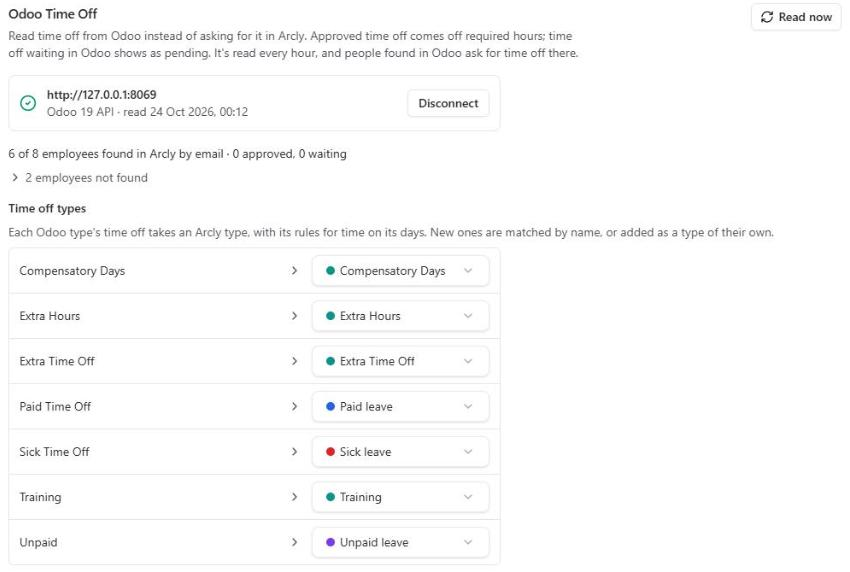
If your company keeps time off in Odoo, LogQuill can read it instead of people asking for it here. In
Odoo Time Off, give your Odoo address (starting with https://, as in https://acme.odoo.com) and an API key (in Odoo: your user, Account Security,
New API Key). For Odoo 17 or 18, also give the database name and the login the key belongs to;
Odoo 19 doesn't need them. Odoo opens its API on its Custom plan, and on an Odoo you host yourself.
- LogQuill reads Odoo every hour, and when you choose Read now. It only reads: employees, time off types and time off, from the start of last year on.
- Odoo's employees are found in LogQuill by work email. The section says how many were found, and lists those that weren't, so you can fix their email.
- Approved time off comes off required hours. Time off waiting in Odoo shows as pending and changes nothing until Odoo approves it. Refused or cancelled in Odoo, it's cancelled here too.
- Each Odoo time off type takes a LogQuill type, with that type's rules for time on its days. New ones are matched by name the first time, or added as a type of their own; change any of them in the list.
- Time off from Odoo is read only in LogQuill: it's decided and cancelled in Odoo. People found in Odoo ask for time off there, not in LogQuill.
Disconnect removes the time off read from Odoo, and people ask for time off in LogQuill again.
Out of office events
People can turn the Out of office events of their connected calendar (Google Calendar or Outlook) into absences, in Integrations. Choose here whether that's allowed, and how:
- Not used: calendars stay for suggested worklogs only.
- Absences, approved at once: an Out of office event becomes an approved absence.
- Absence requests, approved as usual: it goes to the person's approvers, like any request.
Pick the absence type they take. Only the event's dates are read, never its title. A timed event counts a morning or an afternoon once it covers two hours of it (9:00 to 13:00, 13:00 to 17:00). Moved or deleted in the calendar, the absence follows within the hour.
Required hours
An approved absence takes its days off the person's required hours: timesheets, reminders, the dashboard and the time tracking summary. See Absences for what people see.