 LogQuill
Copy last week and bulk edit
Repeat a week's worklogs, or change, move or delete many entries at once.
Who: everyone whose role tracks time, on their own entries only.
Copy last week
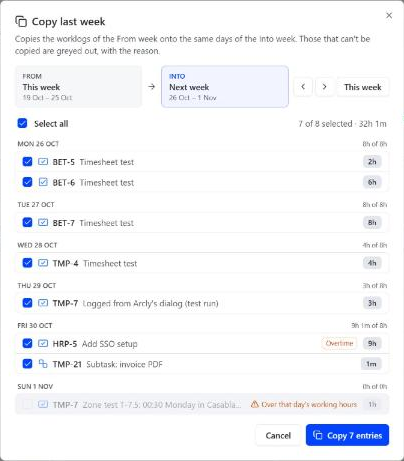
Copies the worklogs of one week onto the same days of another, usually last week onto this one. Plans aren't copied.
On the Time Tracking page, open Time actions, then Copy last week.
Check the From and Into weeks. This week jumps back to the current one.
Tick what to copy (Select all ticks everything), then copy. Each day shows how much of its working hours the copy would use.
What can't be copied stays listed, greyed out, with the reason: the day is in a submitted timesheet, it would go past the day's working hours, the issue was deleted or archived, or it was already logged.
Bulk edit
Turn on Bulk edit on the Time Tracking page, in the table or on the week board.
Pick entries: tick rows, click day headings or cells, drag across days, or pick cards on the board. Your selection stays as you change weeks or views, up to 100 entries.
Choose Edit selection. If you picked both worklogs and plans, choose which to edit first: they're never changed together.
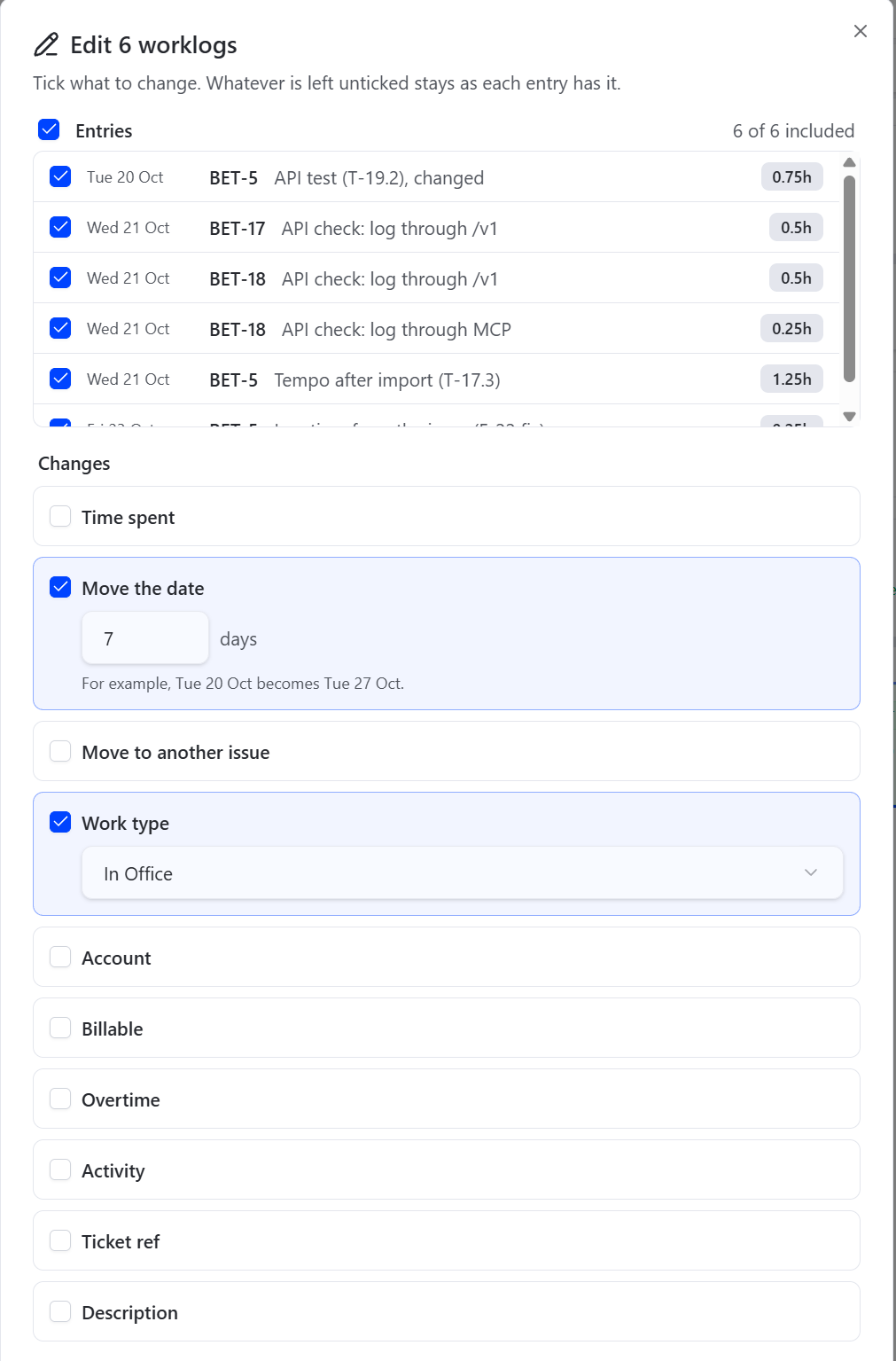
Tick only what to change. Anything left unticked stays as each entry has it. Then Apply, or Delete to remove them all (click twice to confirm).
What you can change at once:
- Worklogs: time spent, the date (moved by a number of days), the issue, the description, the work type, overtime, the account, billable, and worklog fields.
- Plans: planned time, the date, the issue, the description.
Moving worklogs to another issue recreates them there and removes them from the old one, so both issues' remaining estimates stay right.
Saving happens a few entries at a time. You can close the dialog, or go to another page in LogQuill: a notice keeps showing the progress, then the result. Closing LogQuill altogether stops what hasn't been sent yet; what was saved stays saved. Entries that couldn't be saved are listed with the reason. Turn the mode off with Turn off bulk edit.