 LogQuill
Finding your way
Opening LogQuill in Jira, the welcome tour, what each sidebar entry is for, and your own menu.
Who: everyone.
Opening LogQuill
In Jira's top bar, open Apps, then LogQuill. LogQuill opens full width, with its own sidebar on the left.
The welcome tour
The first time you open LogQuill, a tour goes through the sidebar in order: Dashboard, Time Tracking, Reports, Teams and Absences. It opens each page and points at its main parts, then ends on Help & feedback, where these guides are. Use Next and Back, or the arrow keys, and Skip tour or Esc to leave it.
You only see what you have. Without Time Tracking in your sidebar, the tour leaves it out. Admin and Audit log are only in it for people who can open them, and Admin shows only the tabs you have.
It shows once per person: skipped, finished or left halfway, it doesn't come back, on this device or another. If you're given Admin or the audit log later, the tour comes back once, for those alone.
To take it again, open Personal settings from your name and choose Take the tour again.
Screenshot to add: public/screenshots/getting-started/welcome-tour.png
The welcome tour pointing at the Log time button on the Time Tracking page.
Sign in as someone who has never opened LogQuill (or open Personal settings and choose Take the tour again), then press Show me around and Next until the tour reaches Log time on the Time Tracking page. Capture the page with the button highlighted and the tour's card below it.
The sidebar
| Entry | What it's for | Who sees it |
|---|---|---|
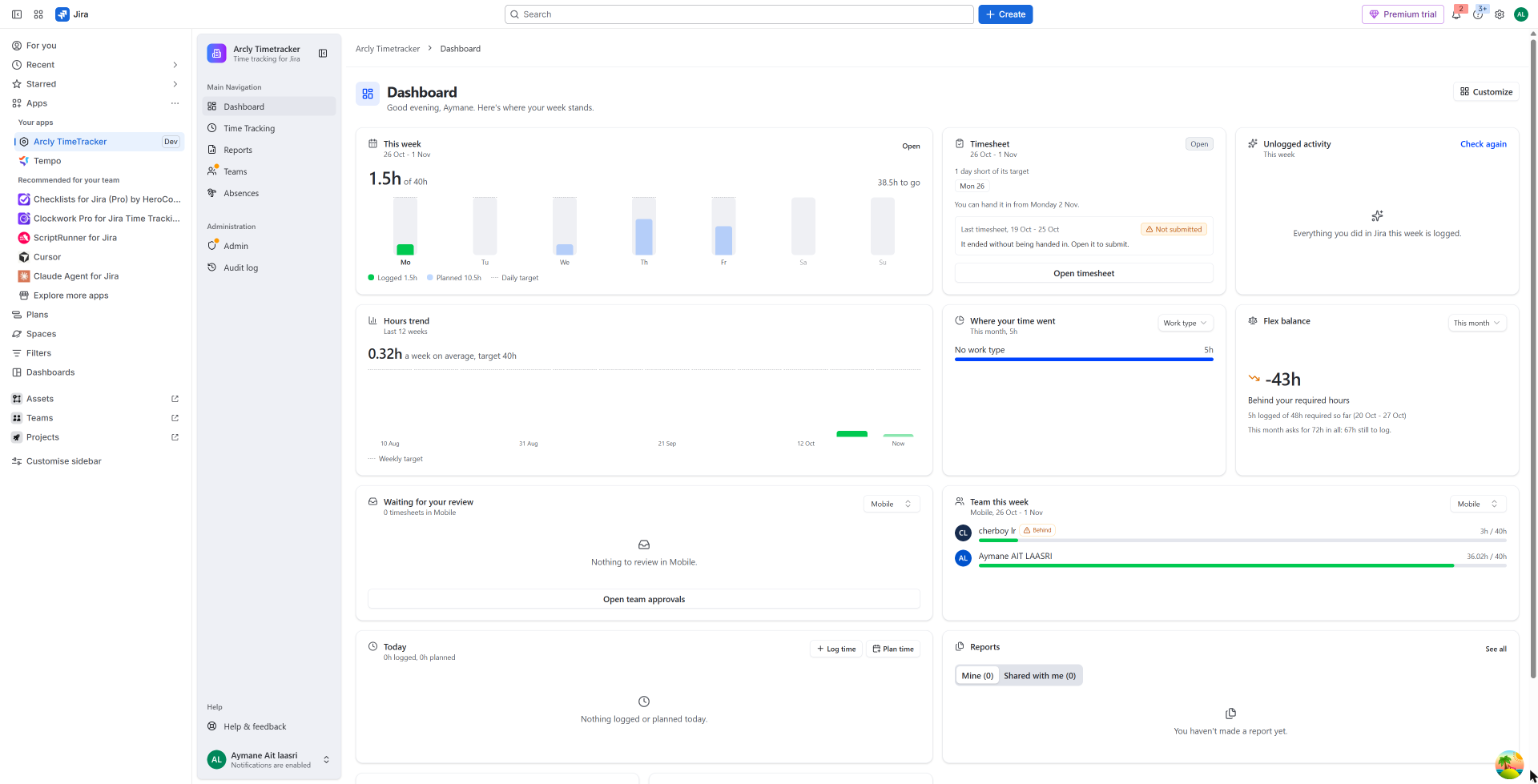
| Dashboard | Your week at a glance, with widgets you choose. Dashboard | Everyone |
| Time Tracking | Log, plan and review your time, by day and by issue. The Time Tracking page | People whose role tracks time |
| Reports | Saved reports over any period, which you can share. Reports | Everyone; each sees the time they're allowed to |
| Teams | Your teams, their members, and, for leaders, their timesheets. Teams | Everyone |
| Absences | Ask for time off, approve your teams', and see who is away. Absences | Everyone |
| Admin | The site's settings, people and roles, and the Jira sync. Administration | Administrators, and anyone given part of it |
| Audit log | Everything done in the app, by whom and when. Audit log | People allowed to read it |
| Help & feedback | These guides, and a form to write to us. Help and feedback | Everyone |
A dot on an entry means something there waits for you. Hover it to see what:
- Time Tracking: one of your timesheets was sent back.
- Teams: timesheets wait for your review. Each team's card, and its Approvals tab, says how many.
- Absences: absences wait for your approval, or one of yours was decided. Opening My absences clears the second.
- Admin: the Jira sync needs a look (for whoever looks after the sync).
- Your name: a connected calendar stopped working. Connect it again in Integrations.
Your menu
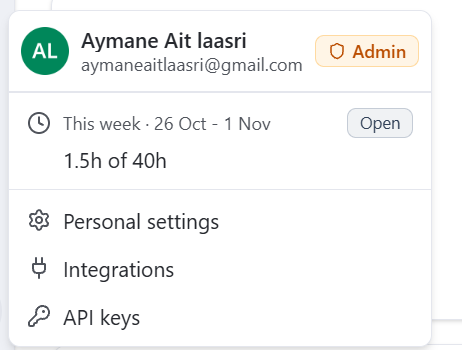
Your name, at the bottom of the sidebar, opens your menu. It shows your role, whether LogQuill can email you, and where your current timesheet stands. From it you reach:
- Personal settings: theme, language, how durations are written, the view the Time Tracking page opens on, and suggestions. Personal settings
- Integrations: connect your Google or Microsoft calendar for suggested worklogs. Suggestions
- API keys: keys for your own scripts and tools. API keys